
Download ScreenClone – Easy Screen Capture, Floating Screenshot Tool
Overview
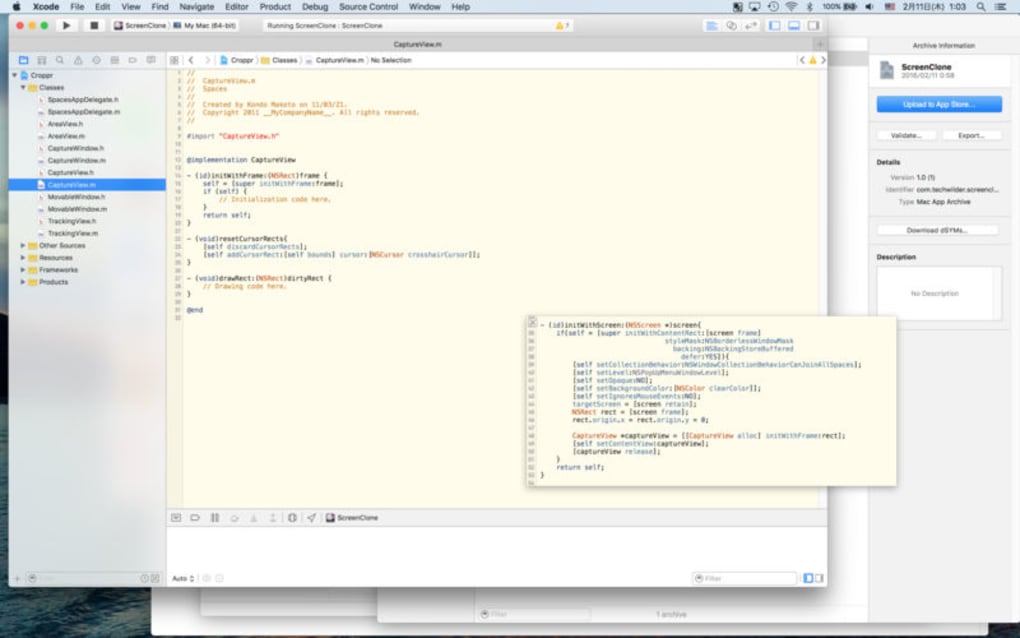
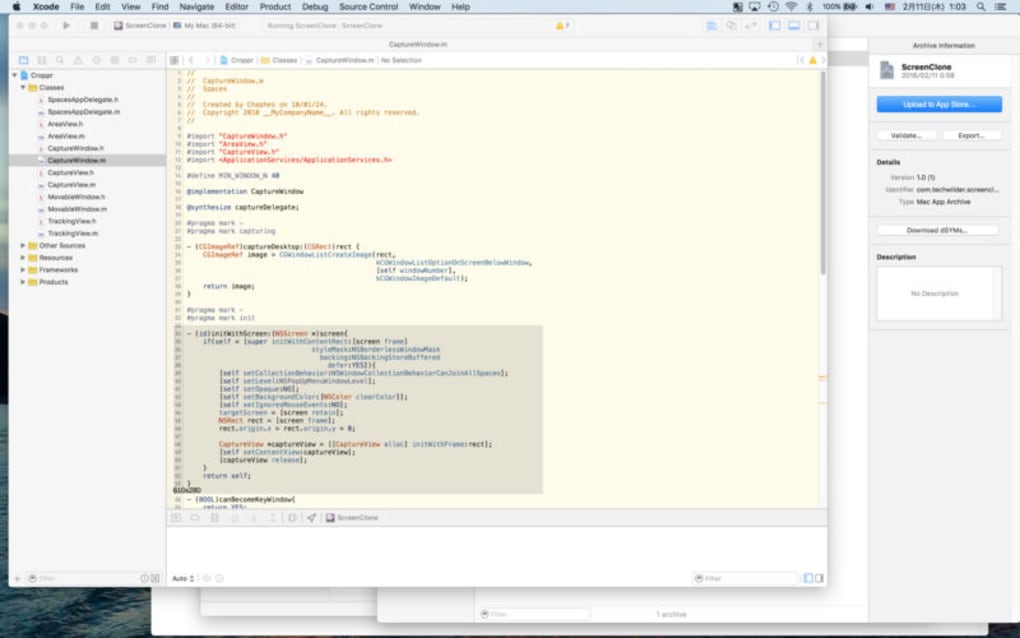
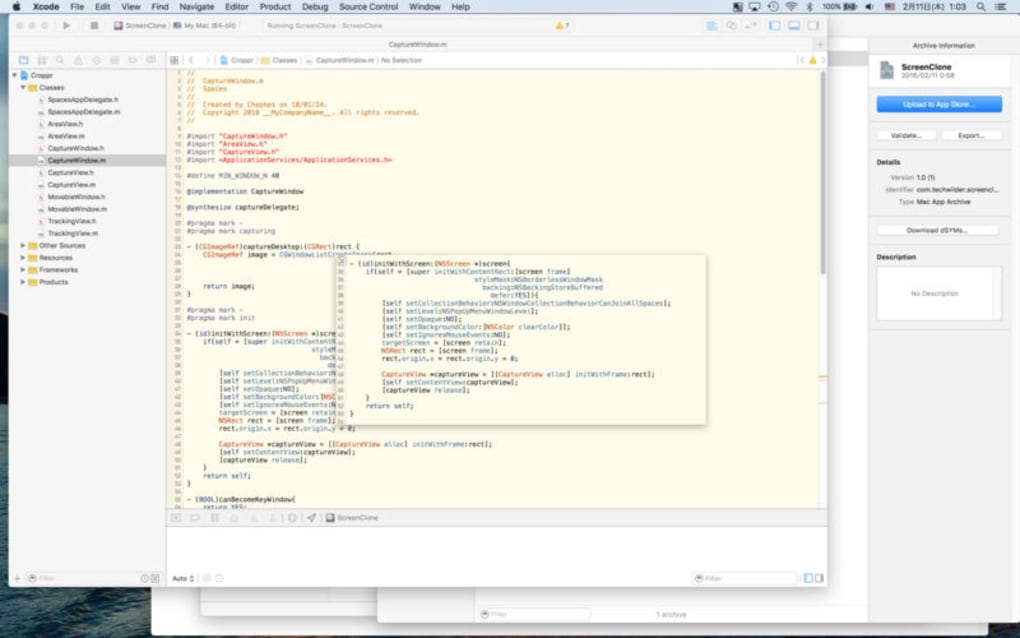
ScreenClone is a lightweight yet powerful screen‑capture utility that lets you grab any portion of your desktop in three simple steps. Once a screenshot is taken, it instantly appears as a floating window, staying on top of other applications so you can reference data, compare values, or annotate without switching back and forth. Designed with productivity in mind, ScreenClone removes the friction of traditional screenshot tools that hide captured images in folders or require extra clicks to view them.
Whether you’re a data analyst comparing spreadsheets, a designer checking pixel‑perfect layouts, or a remote worker who needs to share visual information quickly, ScreenClone offers a seamless experience that keeps your workflow uninterrupted. The interface is intentionally minimal—one click to select the capture area, another to confirm, and the third to close the floating preview. This simplicity does not compromise functionality; the app supports custom hotkeys, multi‑monitor setups, and optional image formats (PNG, JPEG, BMP).
Because the floating window is draggable and resizable, you can keep it on the edge of the screen while you continue typing, coding, or browsing, effectively turning your desktop into an interactive workspace. Security‑focused users will appreciate that ScreenClone never uploads images to the cloud unless you explicitly choose to share them, keeping your data local and private.
Key Features
- Instant Floating Preview: Captured screenshots appear as a separate, always‑on‑top window for immediate reference.
- Three‑Step Capture Process: Click‑drag‑release workflow that requires no additional dialogs.
- Customizable Hotkeys: Assign your own keyboard shortcuts to launch capture mode, save, or close the preview.
- Multi‑Monitor Support: Seamlessly capture across any combination of monitors, including high‑DPI displays.
- Multiple Export Formats: Save images as PNG, JPEG, or BMP with adjustable quality settings.
- Resize & Drag Preview: Move the floating window anywhere on the screen and resize it without losing image quality.
- Privacy‑First Design: Screenshots stay on your local machine unless you manually share them.
- Lightweight Engine: Consumes less than 30 MB of RAM, ensuring it doesn’t slow down other applications.
- Automatic Updates: Built‑in updater checks for new versions and installs them securely.
- Free Core Version: All essential features are available at no cost, with optional premium add‑ons for advanced editing.
Installation, Usage & Compatibility
Installation: Download the installer from the official website, run the .exe (Windows) or .dmg (macOS) file, and follow the guided wizard. The process takes less than a minute, and you can choose a custom install folder or accept the default location. A short license agreement appears, after which the application is ready to launch.
First‑Time Setup: Upon opening ScreenClone for the first time, you’ll be prompted to configure your preferred hotkeys and default image format. The default hotkey (Ctrl + Shift + S) works out of the box, but you can change it in the Settings panel under the “Keyboard” tab.
Capturing a Screenshot: Press the hotkey, then click and drag to draw a rectangle around the area you want to capture. Release the mouse button, and the image instantly pops up in a floating window. From there you can:
- Click the Save icon to store the image on disk.
- Drag the window to any screen edge for continuous reference.
- Resize the preview using the corner handles.
- Press Esc to cancel the capture without creating a file.
Operating System Compatibility (itemprop="operatingSystem"): ScreenClone runs natively on Windows 10/11 (64‑bit) and macOS 10.15 (Catalina) or later. A beta version for Linux (Ubuntu 20.04+) is also available via a .AppImage package. The application leverages the native graphics API of each OS, ensuring smooth performance and accurate color reproduction.
System Requirements: A minimum of 2 GB RAM, 100 MB free disk space, and a graphics driver that supports hardware acceleration. No administrative privileges are required after installation, making it ideal for corporate environments with restricted user rights.
Pros, Cons, FAQ & Conclusion
Pros
- Instant floating preview eliminates the need to open separate folders.
- Very low memory footprint keeps your system responsive.
- Custom hotkeys speed up repetitive capture tasks.
- Supports multiple monitors and high‑DPI screens.
- Free core version offers all essential functionalities.
Cons
- Advanced image editing (annotation, blur) requires third‑party tools.
- No built‑in cloud sync; you must manage uploads manually.
- Linux support is still in beta and may lack some polish.
Frequently Asked Questions
Can ScreenClone capture scrolling windows?
No, the current version only captures static regions. For scrolling captures you’ll need a dedicated tool like Snagit.
Is there a way to automatically save every capture?
Yes, you can enable “Auto‑Save” in Settings. When turned on, each screenshot is saved to a pre‑selected folder without prompting.
Does ScreenClone work on Windows 7?
Officially the app supports Windows 10 and later. It may run on Windows 7, but you could encounter UI glitches or missing features.
Can I change the default image format?
Absolutely. Navigate to Settings → General and select PNG, JPEG, or BMP as your preferred output format.
Is the floating window resizable without losing quality?
Yes, the preview window uses vector‑based scaling for lossless resizing, ensuring the image stays crisp at any size.
Conclusion & Call to Action
ScreenClone fills a niche that many traditional screenshot tools overlook: the need for an instantly accessible visual reference that stays on top of your workflow. Its minimalistic three‑step capture, combined with a floating preview, makes data‑driven tasks faster and less error‑prone. While it lacks built‑in annotation features, the trade‑off is a lighter footprint and a focus on speed. For anyone who regularly switches between documents, spreadsheets, or design files, ScreenClone is a free, secure, and easy‑to‑install solution that boosts productivity without demanding a steep learning curve. Download ScreenClone today, set up your custom hotkeys, and experience a smoother way to work with visual information.
ScreenClone delivers exactly what its tagline promises—a quick, reliable method to capture and keep screenshots in view. The floating window is a game‑changer for multitaskers, and the free version provides more than enough power for everyday use. Minor shortcomings, such as the lack of built‑in editing, are outweighed by its speed and low resource usage.







